PC Access Install Issue with Windows 11 and .NET Framework Version

HarleyDog

New Member
I'm trying to install the HAI Dealer PC Access software (the last available version) and it tells me that I need to install .NET Framework 2.0.

When I click on the link in the installer it takes me to a .NET Framework Download Page but there are newer versions (up to 4.8.1) and I don't know which version I should download and install for the Dealer PC Access installation.

Any help would be appreciated!
 
turns out the .NET Framework is already on Windows 11 - it just needed to be turned on.

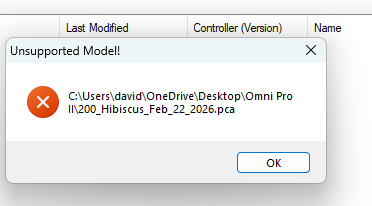
Now I have a new problem! It won't open the existing database file for my Omni Pro II! When I try and open it, I get "Unsupported Model!"

Does anybody know what I need to do? Thank you so much in advance!
 
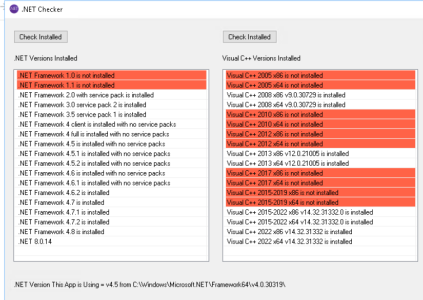
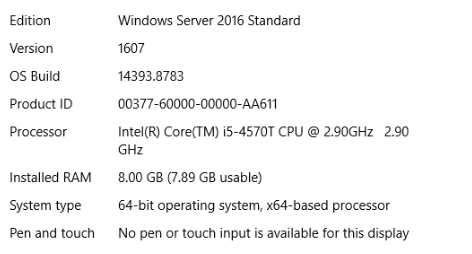
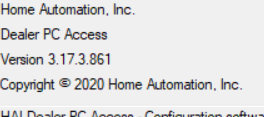
I too have never seen that message. Tested PCA on Windows 10 and Windows 11 to work fine. I run it here on Windows 2016 standard server (RDP to it) sitting on a Lenova Tiny M93 in the basement. Really its set and forget. You can even run it on a VB of Windows on Linux or Mac.

I also have HAI Automation studio running on same said box.

Dot net stuff.

1772379104199.png

1772378809264.png

1772378738478.png
 
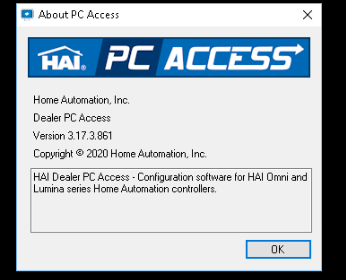
Do you have access to the old computer which was use to create the .pca file? What version of PC Access? Wondering if maybe you need an older version on the new computer or possibly upgrade the old computer to a newer version if available. Also, I see there are an export/import option. I don't recall using it when switching versions. Might be work a shot. The only option to try that does not require access to old computer would be the older PC Access on newer machine. I might have an old version, I came late to OminPro, right before they discontinued.
 
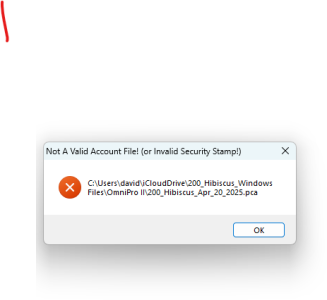
The old computer died but it had the same version of PC Access that I have on the new machine. When I tried opening the .pca file I had imported to the new PC (via a thumb drive) I get the "Unsupported Model" (see uploaded screenshot). When I tried opening the same file from my Apple iCloud Drive I get (see 2nd uploaded screen shot) a message that says "Not a valid account file! (or Invalid Security Stamp!).
 

Attachments

  • Screenshot 2026-03-01 185943.png
    Screenshot 2026-03-01 185943.png
    14 KB · Views: 2
  • Screenshot 2026-03-01 185725.png
    Screenshot 2026-03-01 185725.png
    18.1 KB · Views: 2
curious if you can create a new blank config? then download from controller. You will need to enter the security keys.

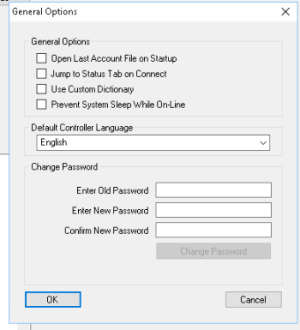
also my files are located C:\Users\<username>\Documents\HAI\PC Access - have you tried copying the files here. shouldn't matter but easy enough to try.
 
Ahh...do you remember the security stamp you created on the old computer?

The security stamp is different from the 4 digit management passcode.

Here removed the security stamp right after I installed PCA.

1772415262976.png

The HAI PC Access security stamp is a user-defined, case-sensitive, alphanumeric passphrase used to encrypt panel configuration files. If you are setting up a new installation, the default password is typically "password". If forgotten, this stamp cannot be bypassed, and the .pca file may be inaccessible.
Key Details for HAI PC Access Security Stamp:

  • Security Stamp: This is not the product key; it is a personalized code for encryption. If it is forgotten, you may need to delete the PCA01.CFG file in the installation folder to reset it, though this may require reconfiguring your panel.
  • Default Password: The software password is often set to "password" by default.
  • Best Practice: It is highly recommended to write down your security stamp and store it in a safe place.
  • Troubleshooting: If the security stamp is forgotten and you cannot access your files, the only way to recover is to obtain the original PCA01.CFG file from a previous install.
Try using "password" the default. Then remove it and save the file again.
 
Thank you to both of you!

I've always written down codes, keys, passwords etc. and/or took screen shots of configuration pages so I was good there.

So, I was able to create a new, blank project. I then entered the 2-part network encryption keys and the leased IP address which then let me connect to the OmniPro II and download the configuration. It was successful and I can't thank you guys enough!

When I checked all of the boxes for what I wanted to read from the controller, the E-Mail Board Set-up Option was grayed out. When I looked at the new file, everything was there (all my naming, programming and dealer settings etc) except for all of my original email settings and email automation. I guessed that it was greyed out because it didn't know the E-Mail notification board existed until I downloaded the configuration. Sure enough, after the download was complete I went to do a 2nd one - and now the email board check box was no longer greyed out. So I unchecked all of the other download configuration boxes and checked the email notification box and did another Read From Controller which pulled all of the pre-configured email notification addresses and and messages that I had created long ago.

Everything is there! I was thinking that I may have had to rebuild the entire database from scratch! If that ended up being the case I probably would have ripped all of the hardware out and replaced it with ELK or something. I hate that Leviton bought this product only to pull the plug on it.

I have no idea why this happened or why I was getting those error boxes when I tried to open the existing .pca database files. With all support from Leviton gone, it's really nice that this forum exists and that there are helpful people on here that can offer answers and suggestions! Thanks again!!!!

 
Thank you to both of you!

I've always written down codes, keys, passwords etc. and/or took screen shots of configuration pages so I was good there.

So, I was able to create a new, blank project. I then entered the 2-part network encryption keys and the leased IP address which then let me connect to the OmniPro II and download the configuration. It was successful and I can't thank you guys enough!

When I checked all of the boxes for what I wanted to read from the controller, the E-Mail Board Set-up Option was grayed out. When I looked at the new file, everything was there (all my naming, programming and dealer settings etc) except for all of my original email settings and email automation. I guessed that it was greyed out because it didn't know the E-Mail notification board existed until I downloaded the configuration. Sure enough, after the download was complete I went to do a 2nd one - and now the email board check box was no longer greyed out. So I unchecked all of the other download configuration boxes and checked the email notification box and did another Read From Controller which pulled all of the pre-configured email notification addresses and and messages that I had created long ago.

Everything is there! I was thinking that I may have had to rebuild the entire database from scratch! If that ended up being the case I probably would have ripped all of the hardware out and replaced it with ELK or something. I hate that Leviton bought this product only to pull the plug on it.

I have no idea why this happened or why I was getting those error boxes when I tried to open the existing .pca database files. With all support from Leviton gone, it's really nice that this forum exists and that there are helpful people on here that can offer answers and suggestions! Thanks again!!!!
Great to hear!
 
Back
Top